

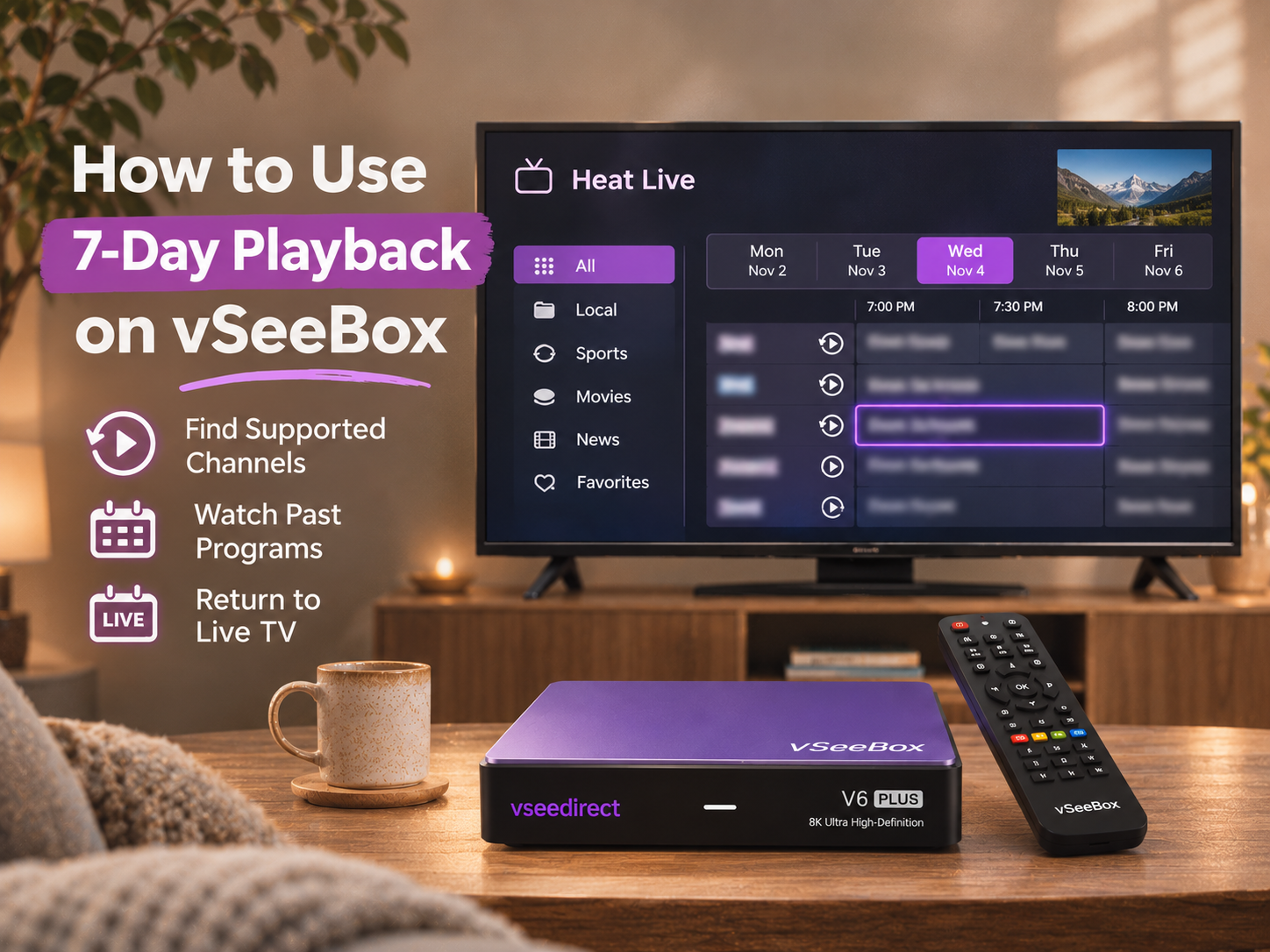
Missed a live program because you got home late? Or did you turn on the TV only to find that the show you wanted to watch had already ended?
With 7-day playback, you may be able to go back and watch an earlier broadcast on a supported channel. Open the program guide, look for the date and time, and select an available program.
This guide explains how to recognize the playback icon, find previous programs, and return to live TV using your vSeeBox remote.
Quick Answer: In Heat Live, highlight a channel with the playback icon and press the right arrow to open its program guide. Find an available earlier date and time, then select the program you want to watch. Playback is available only for supported channels and programs.
How Does vSeeBox 7-Day Playback Work?
The vSeeBox 7-day playback feature lets you revisit available programs that have already aired on supported live TV channels.
For example, if you missed a program yesterday, you can check the channel’s guide to see whether that broadcast is available. On supported channels, you may be able to go back up to seven days.
You don’t need to schedule a recording before the program starts. Browse the available earlier listings and select what you want to watch.
Keep in mind: Not every channel or program supports playback. The available dates and programs can vary.
How to Find Channels With Playback
Before looking for a past program, check whether the channel supports playback.
In the interface shown in the reference guide, supported channels have an icon that looks like a play symbol surrounded by a circular arrow.
To find it:
- Open Heat Live from your vSeeBox home screen.
- Open the channel list.
- Browse the available categories.
- Look for the playback icon beside a channel name.
If you don’t see the icon, playback may not be available on that channel.

How to Use 7-Day Playback on vSeeBox
Once you find a supported channel, follow these steps to look for an earlier broadcast.
Step 1: Highlight the Channel
Use the arrow buttons on your remote to browse the channel list. Move the highlight onto a channel showing the playback icon.
Some versions may also offer playback through Heat Backup. App availability and names can vary by device.
Step 2: Open the Program Guide
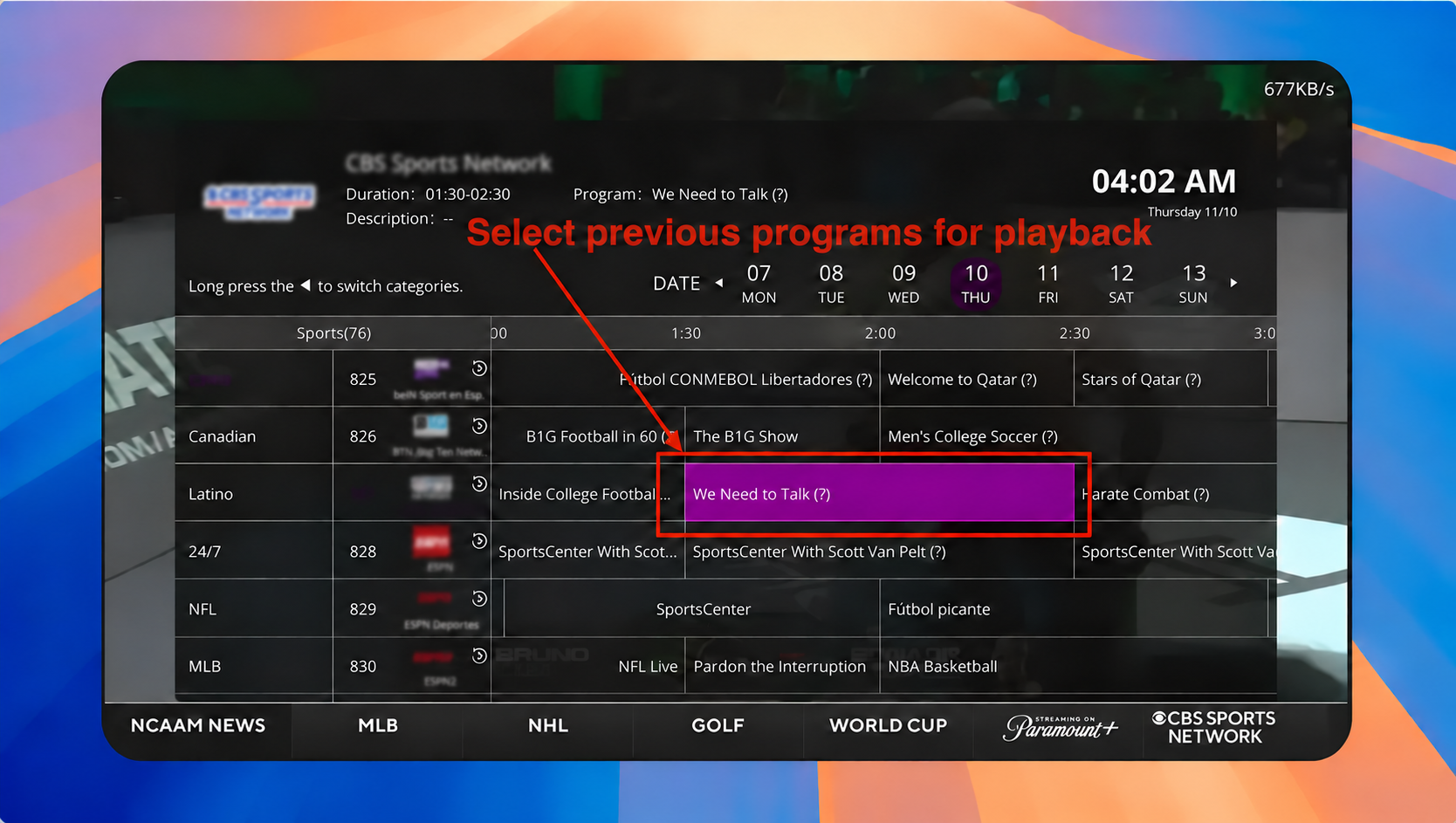
With the channel highlighted, press the right arrow on your remote to open its schedule.
The guide shows programs alongside their time slots, making it easier to find a broadcast that has already aired.
Step 3: Find the Date and Time
Use your remote to navigate through the guide and find the day and time of the program you missed.
The supplied operation guide describes using the up arrow to move back through available times. The layout may look different after an app update, so follow any on-screen prompts.
Step 4: Select the Program
Highlight the earlier program you want and select it to start playback.
If it doesn’t open, try another available program on the same channel. Individual programs and time slots may differ in availability.
How to Return to Live TV
When you’re finished watching a past program, press the Back button on your remote and select Live to return to the current broadcast.
The exact menu may vary depending on the app version.
Want to find your favorite channels more quickly? Read our guide on how to save and find favorite channels on vSeeBox.
Why Can’t I Find a Previous Program?
If a program doesn’t appear or won’t play, check these four things:
- Playback icon: Make sure the channel has the circular-arrow icon.
- Date and time: Check that you selected the correct day and time slot.
- Available window: The program may no longer be available in playback.
- Internet connection: If the listing appears but won’t load, check whether other channels or apps are working.
You can also try another earlier program on the same channel. If playback continues to buffer, see our vSeeBox buffering and freezing guide.
Is 7-Day Playback the Same as a DVR?
No. Both can help you watch after the original broadcast, but they work differently.
| 7-Day Playback | DVR | |
|---|---|---|
| How it works | Lets you revisit available past broadcasts | Records programs for later viewing |
| What you can watch | Supported channels and available programs | Depends on the DVR and its recording options |
| How long it lasts | Depends on the available playback window | Depends on the recording system and its rules |
Playback does not mean that every program is recorded or stored permanently. Check the program guide to see what is available.
Frequently Asked Questions
Q: Does Every Channel Support 7-Day Playback?
A: Look for the playback icon beside the channel. Even on supported channels, individual programs may not always be available.
Q: Can I Watch Programs From More Than Seven Days Ago?
A:The feature described here offers up to seven days on supported channels. Programs outside the available window may no longer appear or play.
Q: Can I Use Playback for Sports?
A: Some supported channels may offer playback for previously aired sports programming. Check the playback icon and program guide for availability.
For more tips, read our guide to watching live sports on vSeeBox.
Q: What If I Need Help With My Remote?
A: Look for the directional arrows, OK, and Back buttons. You can also read our vSeeBox remote control guide.
Catch Up When It Works for You
7-day playback can help you revisit an available program you missed. Look for the playback icon, open the channel’s guide, and check the earlier dates and times.
If you need help navigating the guide, contact the vSeeDirect support team with your device model and app name.