


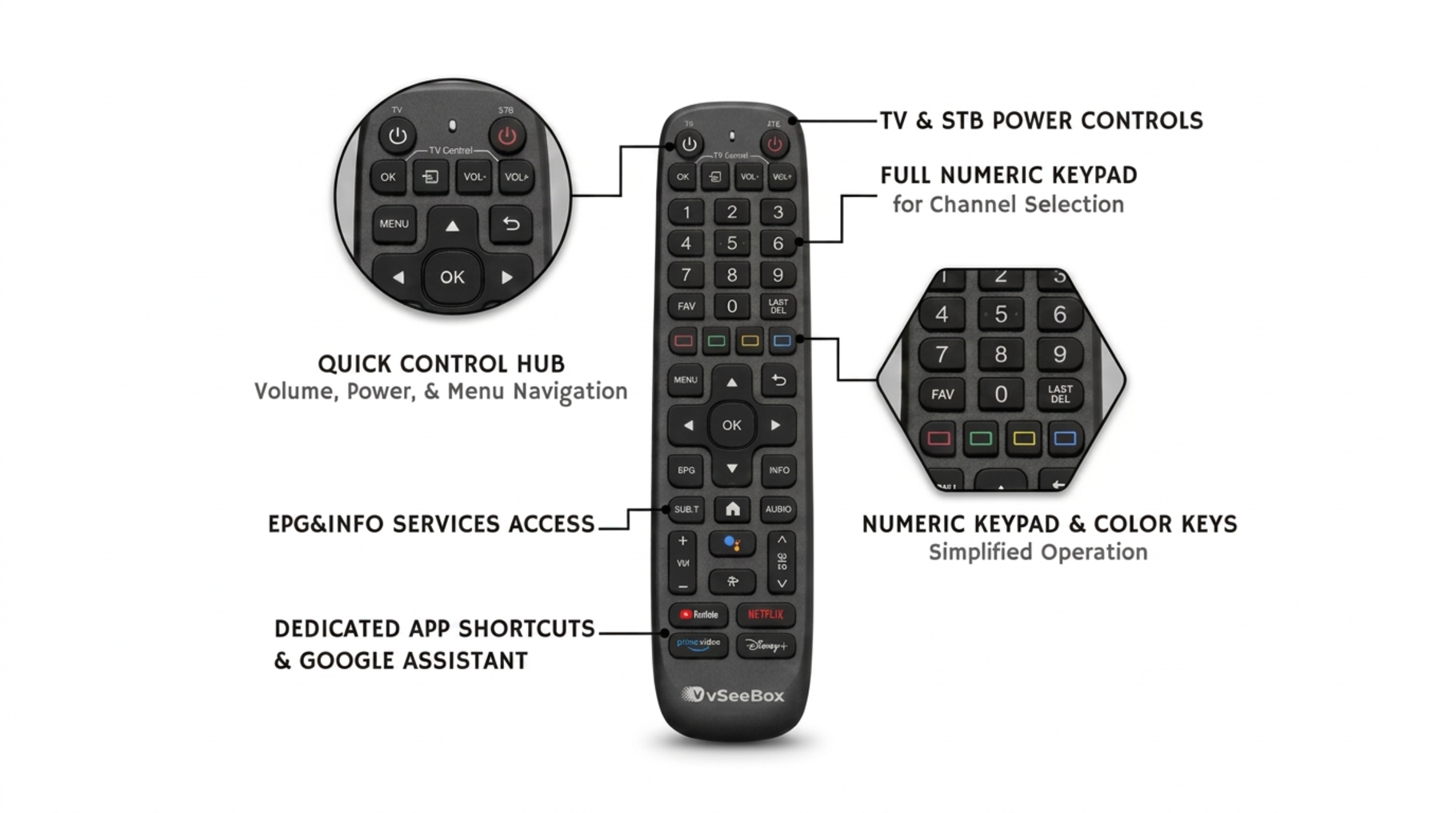
A new remote can take a little getting used to. With your vSeeBox remote, you can move through menus, search for something to watch, adjust the volume and more—all from one place.
If you're setting up a vSeeBox for yourself or helping a parent or grandparent, here's what you need to know to get started.
What Can You Do with the vSeeBox Remote?
Your remote puts the everyday controls in one place.
Depending on your vSeeBox model, you can use it to:
- Move through menus
- Select apps and content
- Adjust the volume
- Control your TV
- Search with your voice
Once the remote is connected, most everyday tasks are just a few button presses away.
1. How to Pair Your vSeeBox Remote
Setting up your remote is one of the first things to do when you turn on your vSeeBox.
To pair it:
- Point the remote toward your vSeeBox.
- Press and hold OK + VOL- at the same time.
- Wait for the indicator light to flash.
- Follow the pairing instructions on your TV.
Once it's connected, you can use the remote to navigate your vSeeBox and choose what you want to watch.
Having trouble pairing?
Check that the batteries are installed correctly, then try the pairing steps again.
2. Control Your TV with One Remote
Some vSeeBox remotes can also be programmed to control basic TV functions, such as power, volume, mute and input.
This can be handy when you want to keep the controls you use most in one place instead of reaching for another remote.
Not sure if your remote supports this feature? Turn it over and check the back for programming instructions. If you see instructions for programming the TV buttons, you can follow the steps shown on your remote.

3. Use Your Voice to Search
Typing with a remote isn't always the easiest way to search, especially when you're looking for a specific movie, show or app. If your vSeeBox remote has a microphone, voice control can make searching easier. Press the voice button and speak your search instead of entering it letter by letter.
Before using voice control, make sure your remote is connected through:
- Settings → Bluetooth
You may also need to allow microphone access under:
- Settings → Apps → Google or Voice → Permissions → Microphone
For older adults or anyone who finds an on-screen keyboard difficult to use, voice search can be a more comfortable way to find what they want.
4. What to Do If Your vSeeBox Remote Isn't Working
If the remote stops responding, start with a few quick checks.
- Try New Batteries
Replace the batteries with fresh ones and try the remote again.
- Pair the Remote Again
If the connection was lost, try pairing the remote again. Depending on your model, you may need to press and hold OK + VOL- until the pairing screen appears.
Then select Connect on your TV.
- Restart Your vSeeBox
Still not working? Unplug your vSeeBox, wait about 10 seconds, and plug it back in. Once the device starts up again, try the remote.
These quick checks can solve many common remote issues without changing other settings.
Need More Help with Your vSeeBox?
If you're still getting started, our [How to Set Up a vSeeBox?] guide walks you through the basic setup, from connecting your device to getting it ready to use.
Once you're connected, you can start exploring the apps and entertainment available on your vSeeBox.