

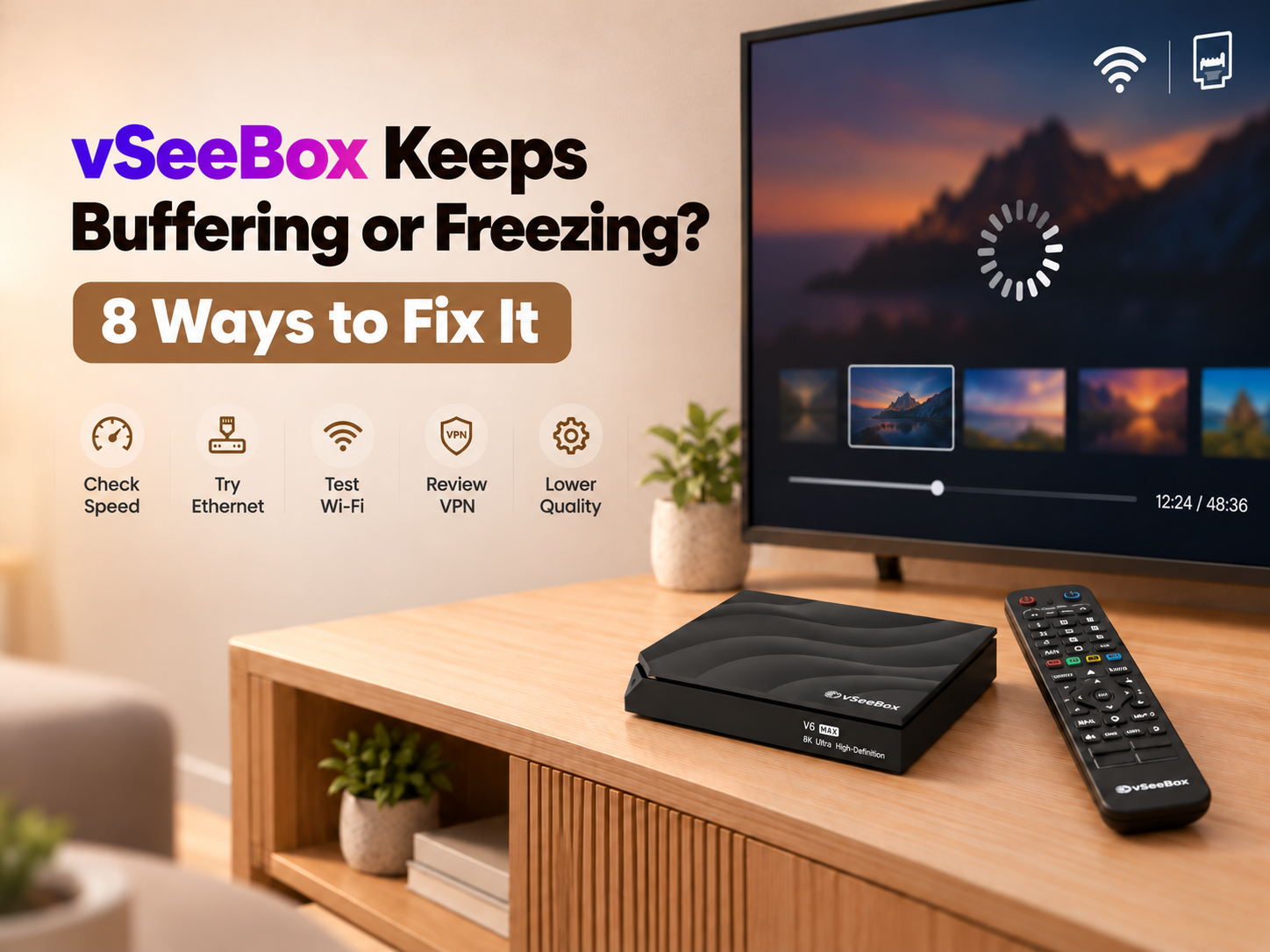
Is your vSeeBox buffering or freezing while you are watching a video?
Buffering does not always mean there is something wrong with the device. It may be related to your internet connection, Wi-Fi stability, VPN connection, playback quality, or a problem affecting only certain content.
If your vSeeBox keeps buffering, start with the simple troubleshooting steps below.
Quick Answer: Why Does My vSeeBox Keep Freezing?
Try these steps first:
-
Restart your vSeeBox.
-
Restart your router and modem.
-
Test your internet speed.
-
Try Ethernet instead of Wi-Fi.
-
Check whether other content works normally.
-
If you use a VPN, test playback with and without it.
-
Pause VOD playback for about 15 seconds.
-
Lower the video quality if needed.
These steps can help you identify whether the problem comes from your network, Wi-Fi connection, VPN, playback settings, or a specific stream.
1. Restart Your vSeeBox
Start with the easiest step.
Disconnect your vSeeBox from power, wait about 30 seconds, and reconnect it.
Once the device has restarted, return to the same content and test it again.
A simple restart can help clear temporary processes or cached data that may be affecting playback.
2. Restart Your Router and Modem
If restarting the vSeeBox does not help, refresh your internet connection.
Follow these steps:
-
Unplug your router and modem.
-
Leave them disconnected for at least 30 seconds.
-
Plug them back in.
-
Wait until the internet connection is restored.
-
Test your vSeeBox again.
If several devices in your home are also experiencing slower internet, the problem may be related to your network rather than the vSeeBox itself.
3. Check Your Internet Speed
Streaming requires a stable internet connection.
Use a reliable internet speed test to check whether your current connection is performing normally.
For higher-quality streaming, a connection of around 15 Mbps or higher is recommended.
Keep in mind that your available speed may be lower when several people are using the same network at the same time.
If multiple devices are streaming, gaming, downloading files, or using other high-bandwidth services, less bandwidth may be available for your vSeeBox.
4. Wi-Fi or Ethernet: Which Is Better for vSeeBox?
If possible, connect your vSeeBox directly to your router using an Ethernet cable.
A wired connection is generally more stable and can help you determine whether Wi-Fi is contributing to the buffering problem.
To connect with Ethernet:
-
Connect an Ethernet cable from your router to the vSeeBox.
-
Open Settings → Network & Internet if you want to confirm the connection.
-
Test the same content again.
If playback improves after switching to Ethernet, your Wi-Fi connection may have been part of the problem.
If you prefer Wi-Fi, try reducing unnecessary network activity and make sure the connection is stable before testing again.
5. Check Whether Everything Is Buffering
Do not assume the entire device is having a problem.
Try several different streams or types of content.
If most or all content is buffering, focus on your internet connection, router, Wi-Fi, and VPN settings.
If most content works normally but only one or two streams continue to freeze, the issue may be limited to those specific streams.
Some live programming may also require more stable bandwidth than other content.
If a specific stream continues to freeze for an extended period while other content works normally, use the available Feedback function in the app to report it.
6. Check Your VPN Connection
A VPN is not required for normal vSeeBox use.
However, if you are using one and buffering occurs, test the same content with and without the VPN.
You can try:
-
Turning the VPN off temporarily
-
Switching to another VPN server
-
Testing your internet speed again
-
Replaying the same content
If playback becomes smoother without the VPN, the VPN connection or selected server may be slowing your connection.
7. Fix Buffering During VOD Playback
If buffering mainly happens while watching VOD content, try these two steps.
Pause for About 15 Seconds
Pause the video for approximately 15 seconds, then resume playback.
This can sometimes help reduce repeated buffering during VOD playback.
Lower the Video Quality
During VOD playback:
Press Menu → Quality
Depending on the content, you may see:
-
High
-
Normal
-
Low
If the video repeatedly buffers on High quality, try Normal or Low.
Lower video quality requires less bandwidth and may improve playback when your connection is unstable.
8. Reduce Wi-Fi Network Load
If your vSeeBox is connected through Wi-Fi, check whether too many devices are actively using the network.
Temporarily reduce unnecessary Wi-Fi activity and test the vSeeBox again.
If playback improves, network congestion may have been affecting streaming performance.
You can also compare the result with an Ethernet connection to see whether Wi-Fi is the main cause.
What If Your vSeeBox Is Still Buffering?
If the issue continues, try to identify exactly where the problem occurs.
Ask these questions:
-
Does everything buffer?
-
Is only one app affected?
-
Is only one stream affected?
-
Does Ethernet work better than Wi-Fi?
-
Does the problem disappear when the VPN is turned off?
If you contact support, providing these details can make troubleshooting easier.
It can also help to record a short video showing the buffering or freezing issue.
A factory reset should not normally be the first step for a basic buffering problem because it removes device data and settings. Try the simpler network and playback troubleshooting steps first.
Final Thoughts
If your vSeeBox keeps buffering or freezing, work through the problem in this order:
Restart vSeeBox → restart your router → test internet speed → try Ethernet → test other content → check your VPN → adjust VOD quality.
This troubleshooting process can help you determine whether the problem comes from your network, Wi-Fi connection, VPN, playback settings, or a specific stream.
In many cases, identifying the source of the problem is more useful than immediately resetting the device.