


Do you find yourself scrolling through the same channel list every time you turn on your TV?
If you often watch the same local channels, sports, or other live programs, saving your favorites can make them easier to find. Instead of looking through the full list each time, you can open the Favorites section and choose from the channels you’ve saved.
In this guide, we’ll show you how to add, find, and remove favorite channels using your vSeeBox remote.
Quick Answer: In Heat Live, open the channel guide, highlight the channel you want, and press and hold OK on your remote until a heart icon appears. To find it later, look for Favorites in the channel guide. To remove it, highlight the channel and press and hold OK again until the heart disappears.
Menu names and button behavior may vary depending on your app version and device.
Why Save Favorite Channels?
A favorites list puts the channels you watch most often in one place. It can be especially helpful if several people in your household use the same TV or if you’re helping a parent get comfortable with a new device.
For example, you might save a few frequently watched channels first. The next time someone wants to watch, they can open Favorites rather than scroll through the full channel guide.
You can add or remove channels whenever your preferences change, so there’s no need to set up the entire list at once.
Before You Start
Make sure your vSeeBox is connected to your TV and the internet, and that your remote is working.
The steps below use Heat Live as an example. You can add channels to Favorites directly from the vSeeBox channel guide in the app.
Your screen may look different after an app update, and other live TV apps may organize their menus differently.
If you’re still setting up your device, start with our vSeeBox setup guide.
How to Add a Channel to Favorites
Once you’re in Heat Live, you can save a channel directly from the guide.
- Open Heat Live from your vSeeBox home screen.
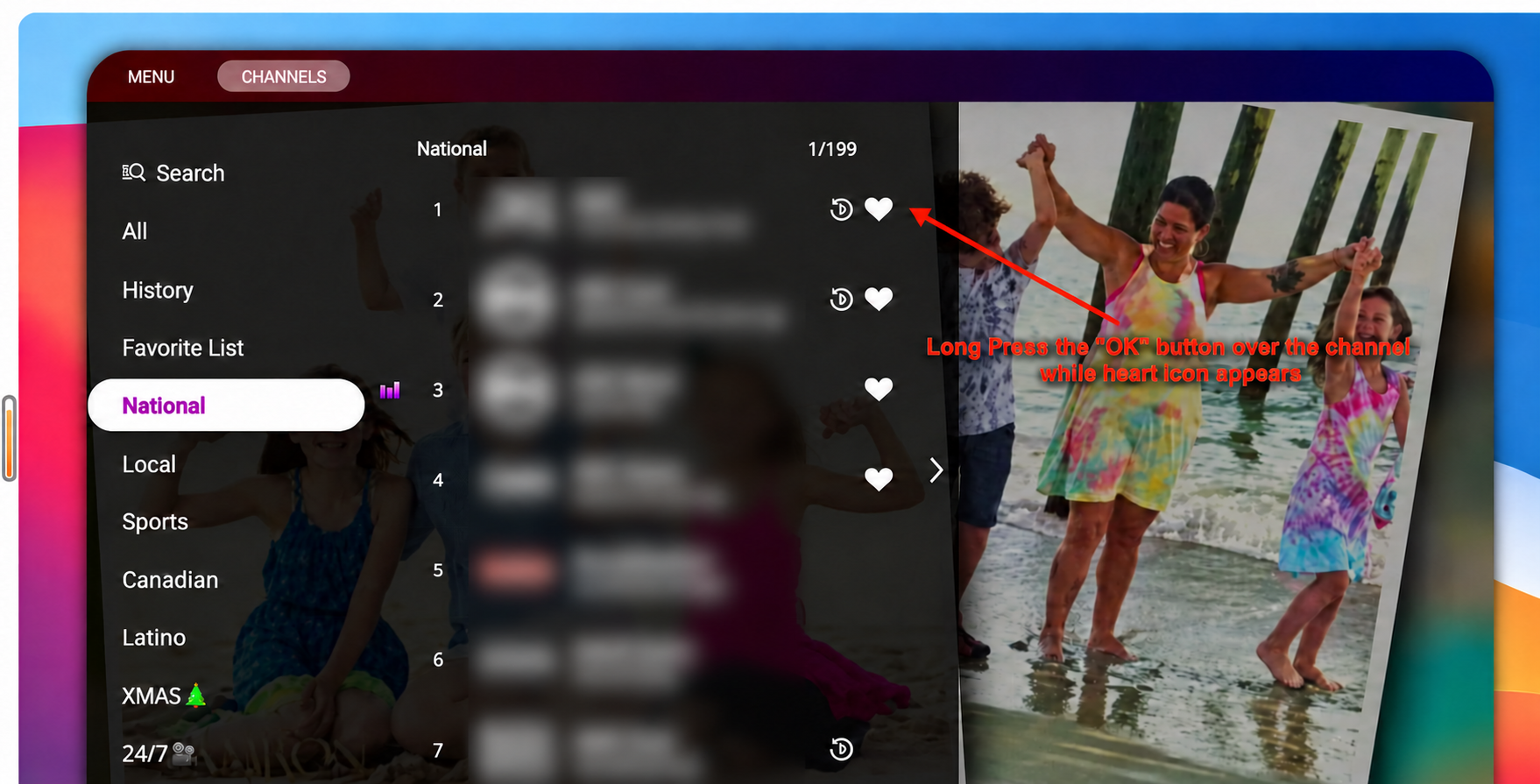
- If you’re watching a channel, press OK on your remote to bring up the channel guide.
- Use the arrow buttons to move through the list.
- Highlight the channel you want to save. You don’t need to open it first.
- Press and hold OK for approximately two seconds.
- Look for a heart icon next to the channel. This indicates that it has been added to your favorites.
Repeat these steps for each channel you want to save.
Tip: Make sure the channel is highlighted before holding the button. A quick press of OK may open the channel instead of adding it to Favorites.
How to Find Your Favorite Channels on vSeeBox
After you’ve saved a channel, you can return to it through the Favorites section:
- Open Heat Live.
- Press OK to open the channel guide if it isn’t already visible.
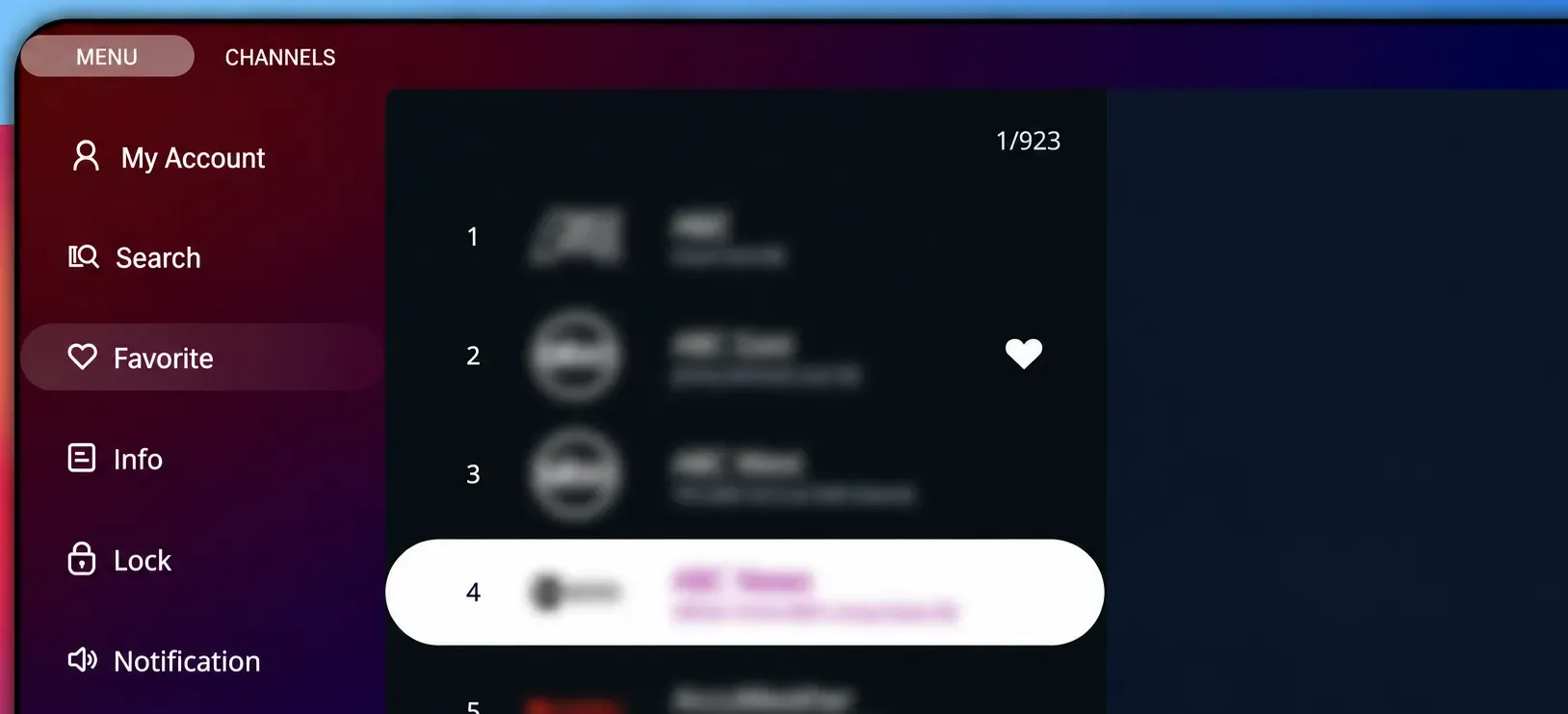
- Look at the categories on the left side of the guide.
- Select Favorites or Favorite.
- Highlight a saved channel and press OK to watch.
If you don’t see Favorites immediately, check the channel guide’s category list. The location or wording may differ depending on your app version.
How to Remove a Channel from Favorites
You can remove a channel from your favorites without rebuilding the whole list.
- Open the channel guide and find the channel you want to remove.
- Highlight the channel.
- Press and hold OK until the heart icon disappears.
- Return to the Favorites section and check your list.
Removing a channel from Favorites removes it from your saved list. You can add it again later by following the same steps.
What If a Channel Doesn’t Appear in Favorites?
If you’ve tried the steps but can’t find your saved channel, check the following.
Make Sure You Held OK Long Enough
A short press generally selects or opens a channel. Highlight it again and hold OK for about two seconds, then check whether a heart appears.
Check That You’re in the Same App
If you saved a channel in Heat Live, return to Heat Live and check its Favorites section. Other apps may have their own menus and favorites lists.
Look for the Heart Icon
The heart is a useful sign that the channel was saved. If you don’t see it, try highlighting the channel and holding OK again.
Check the App’s Current Layout
App menus may change after an update. If the guide looks different from the steps above, look for a category labeled Favorites or a heart icon.
If you still can’t find your saved channels, contact your retailer’s support team. It helps to share your vSeeBox model, app name, and a photo of the screen so they can guide you through the right steps.
Getting Comfortable With Your Remote
The OK and arrow buttons do most of the work when you’re browsing the channel guide. The difference between a quick press and a long press also matters: one may open a channel, while the other can add it to Favorites.
If you’d like to learn more about your remote, read our vSeeBox remote control guide.
A Simple Setup Tip for Families
If you’re helping a parent or another family member get started, take a few minutes to create a short favorites list together.
Ask which channels they watch most often and save those first. Then practice opening Favorites and choosing a channel together. A smaller list can make the first few days with a new device feel more familiar.
For more ideas, read our guide on choosing a streaming device for seniors.
Frequently Asked Questions
Q: Can I Add More Than One Channel to Favorites?
A: Follow the same steps for each channel you want to save: highlight it and press and hold OK until the heart appears.
Q: Do I Need to Use the Favorites Button on My Remote?
A: In the Heat Live steps described above, you can add a channel by highlighting it in the guide and holding OK. Remote buttons and their functions can vary, so check your remote’s instructions if its Favorites button behaves differently.
Q: Can I Add a Channel Back After Removing It?
A: Find the channel in the guide, highlight it, and press and hold OK until the heart appears again.
Keep Your Favorite Channels Close
Saving channels to Favorites is a small step that can make everyday viewing easier. Start with the channels your household watches most often, then update the list whenever you like.
If you need help finding the Favorites section or using your remote, the vSeeDirect support team is here to help.
PS: Save on your vSeeBox purchase with code 353535 at checkout. SHOP NOW