

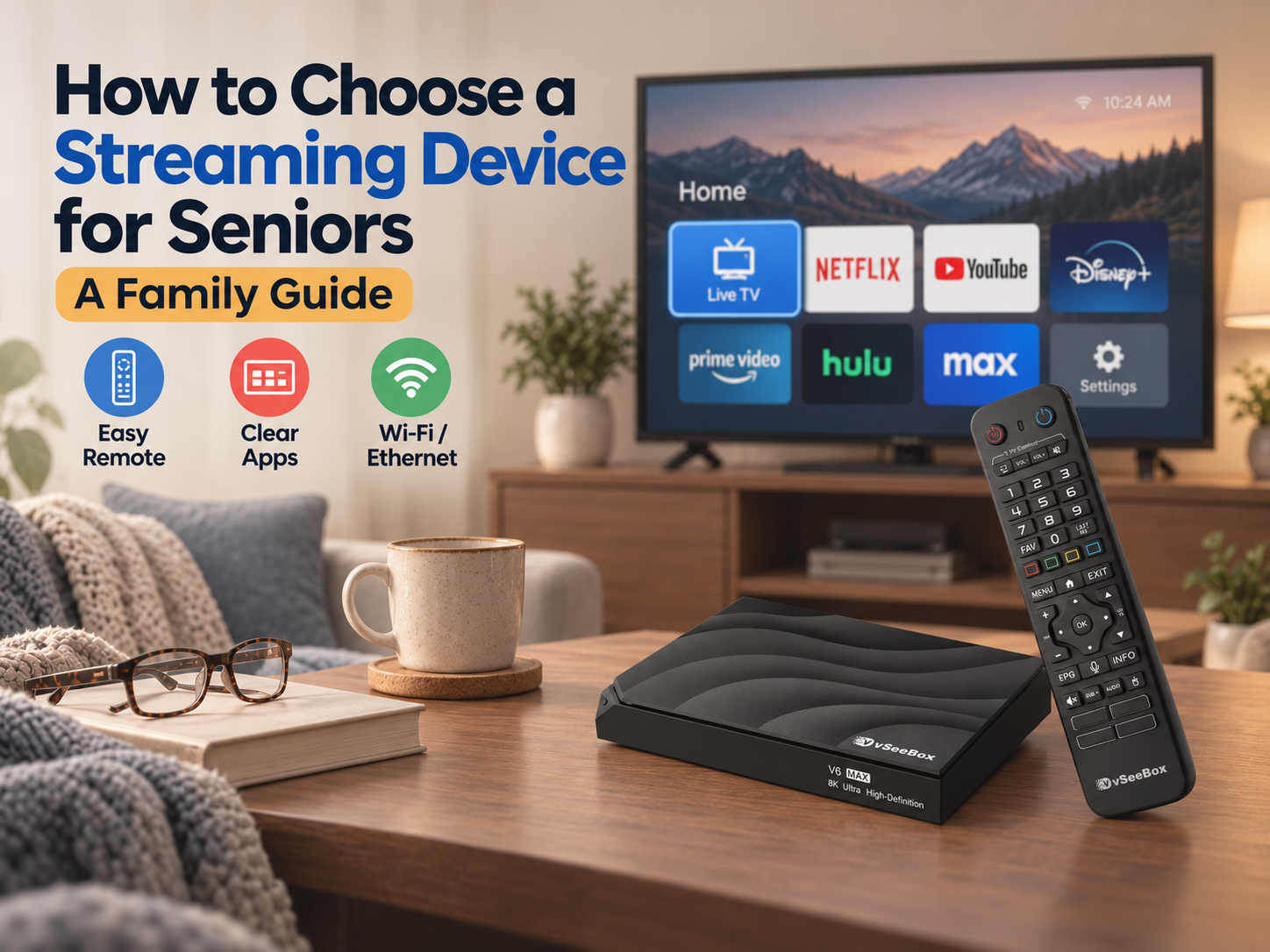
You want to help your parents enjoy their favorite entertainment, but you may be wondering: Will they be able to use a streaming device on their own?
Unfamiliar apps, multiple remotes, and new menus can take time to learn. The best place to start is with your parent’s viewing habits: what they like to watch, whether they need captions, and how comfortable they feel using a remote.
Here’s what families should look for—and where the vSeeBox V6 Max may fit.
Quick Answer
Look for a streaming device with a comfortable remote, a clear way to find content, and help when questions come up.
The vSeeBox V6 Max has a backlit voice remote and an app-based home screen. A family member can help with setup and show a parent how to find their preferred apps.
Before buying, check the TV connection, internet access, app compatibility, and caption availability.
1. Start With Their TV Habits
Ask your parent what they enjoy watching. Do they mainly watch live TV, movies, documentaries, or sports?
Then consider how they use their current TV:
- Do they prefer browsing a guide or searching for a title?
- Do they rely on closed captions?
- Are they comfortable opening apps?
- Do they record programs to watch later?
- Is there a particular service they want to keep using?
If they rely on a specific app or service, check whether it is supported and whether it requires a separate subscription.
2. Choose a Comfortable Remote
A remote can make a difference in everyday use. Look at the layout together: Can your parent see the buttons and comfortably press them?
The V6 Max has a backlit voice remote. Backlighting can make buttons easier to see in a dim room, while voice search may reduce the need to type a title letter by letter.
Voice search behavior can vary by app and search screen. Let your parent try it alongside the directional buttons and choose what feels comfortable.
The V6 Plus also has a backlit voice remote. The V6 Pro has a voice remote without backlighting.
Will they need two remotes?
Some TV controls may be programmable on a vSeeBox remote, but compatibility and available functions can vary by television and setup. Your parent may still need the TV remote for certain tasks.
During setup, show them which remote to use for turning on the TV, selecting the input, and adjusting the volume.
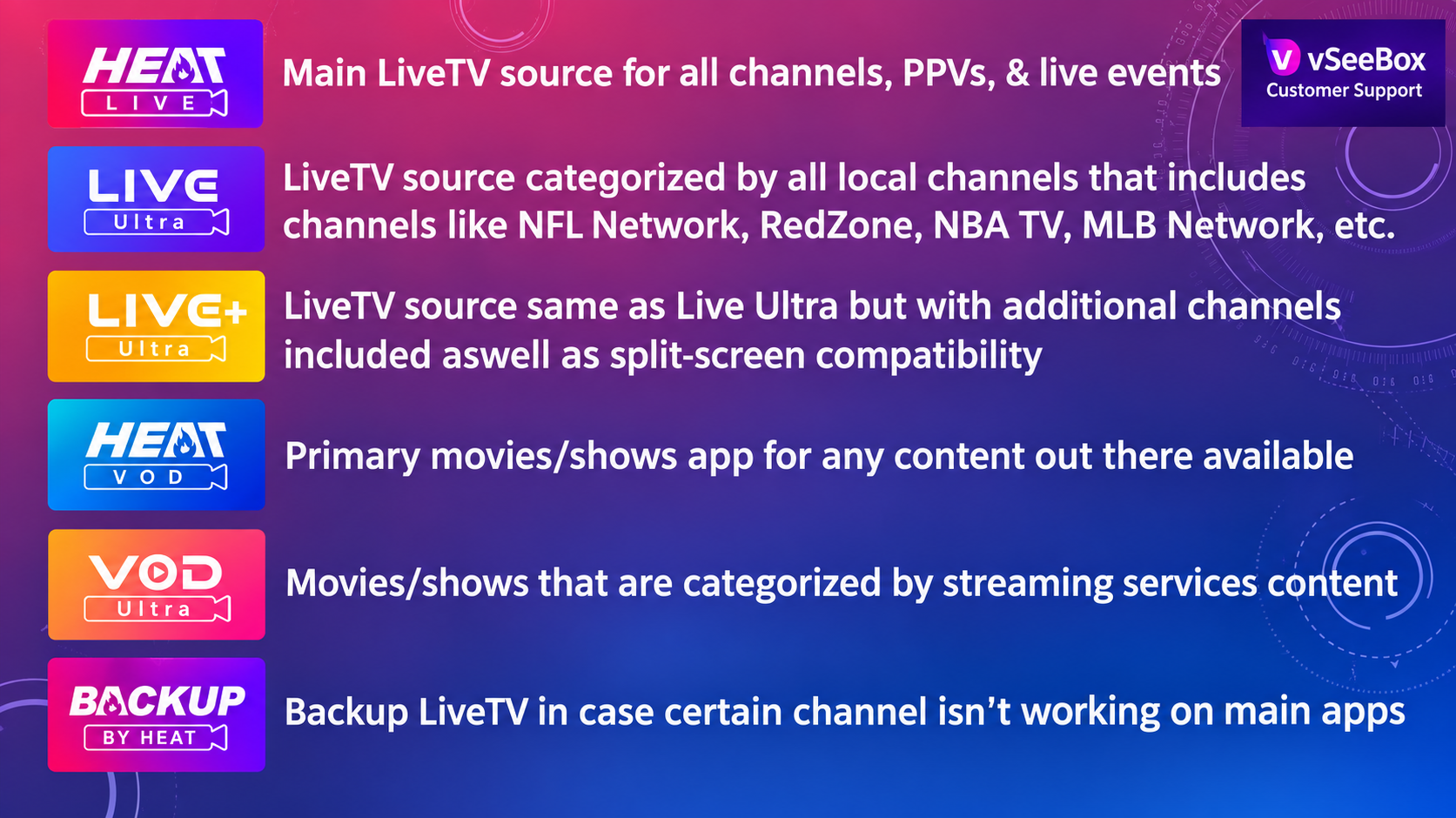 3. Help Them Find the Right App
Streaming devices often use apps to organize entertainment. Someone used to a traditional TV guide may need time to get comfortable opening an app and browsing its menus.
The V6 Max home screen displays app icons. Start by showing your parent the one or two apps they plan to use most.
| App | What it’s used for |
|---|---|
| Heat Live | Browsing live TV programming. |
| Live Ultra | Browsing live TV, including local channels and other categories. |
| Heat VOD | Browsing and searching for movies and TV series on demand. |
Available apps, content, and features can vary by model, location, and updates.
If your parent mainly watches live TV, practice opening their preferred live TV app first. Once that feels familiar, show them how to find movies and series in a VOD app.
Set up favorites together
A favorites list can make frequently watched content easier to find. Heat Live offers favorites for live channels, and some on-demand apps also have favorites sections.
Help your parent save the content they watch most and practice opening the list together. The menu and steps may vary by app or version.
Remember: Streaming apps may organize channels and content differently from a traditional cable guide. Consider trying the new device alongside the existing service before making a change.
4. Check Subtitles and 7-Day Playback
Subtitles: Some on-demand content offers subtitles in the playback menu. Live Ultra and Live Ultra+ may also offer closed caption options. Availability varies by app and program.
7-day playback: Missed a program? You may be able to watch it later using playback. This feature is available for selected content and works differently from a DVR.
5. Check the TV and Internet Connection
Before ordering a vSeeBox, look for an available HDMI input on the back or side of the TV.
The V6 Max needs an internet connection and can connect through Wi‑Fi or an Ethernet cable. A family member can help enter the Wi‑Fi password or connect the cable during setup.
If the TV does not have an HDMI input, check compatibility before buying.
Already have a vSeeBox and need connection help? Read our vSeeBox internet connection troubleshooting guide.
6. V6 Max or V6 Plus?
Both models have a backlit voice remote. One difference to consider is split-screen viewing.
| Feature | V6 Max | V6 Plus |
|---|---|---|
| Backlit voice remote | Yes | Yes |
| Storage | 64 GB | 64 GB |
| Split-screen viewing | No | Yes, in supported apps |
| Consider it if… | Your household usually watches one program at a time | Your household also wants split-screen viewing |
The V6 Max is an option to explore if your parent generally watches one program at a time. The V6 Plus adds split-screen viewing for families who want it.
For more details, see our vSeeBox buying guide or compare the vSeeBox models.
7. Help Your Parent Get Started
Keep the first lesson focused on the tasks your parent wants to do. Practice together:
- Turn on the TV and select the correct input.
- Open their preferred app.
- Find something to watch or open their favorites.
- Return to the previous screen or home screen.
- Adjust the volume using the appropriate remote.
Let your parent try the steps while you are nearby. If helpful, write them in large, clear print and leave the note beside the TV.
A photo of their actual remote or home screen can make the guide easier to follow. Label only the buttons and apps they use most.
Not Sure Which Device Is Right for Your Parent?
If you’re considering the V6 Max, our team can help you understand the options before you order.
Tell us what kind of TV your parent has, what they like to watch, and whether captions are important to them.
Visit vSeeDirect and chat with our team
Your Halloween Treat Awaits! 🎃
Save on your vSeeBox purchase with code 353535 at checkout.