A Simple Guide to Finding and Installing Apps
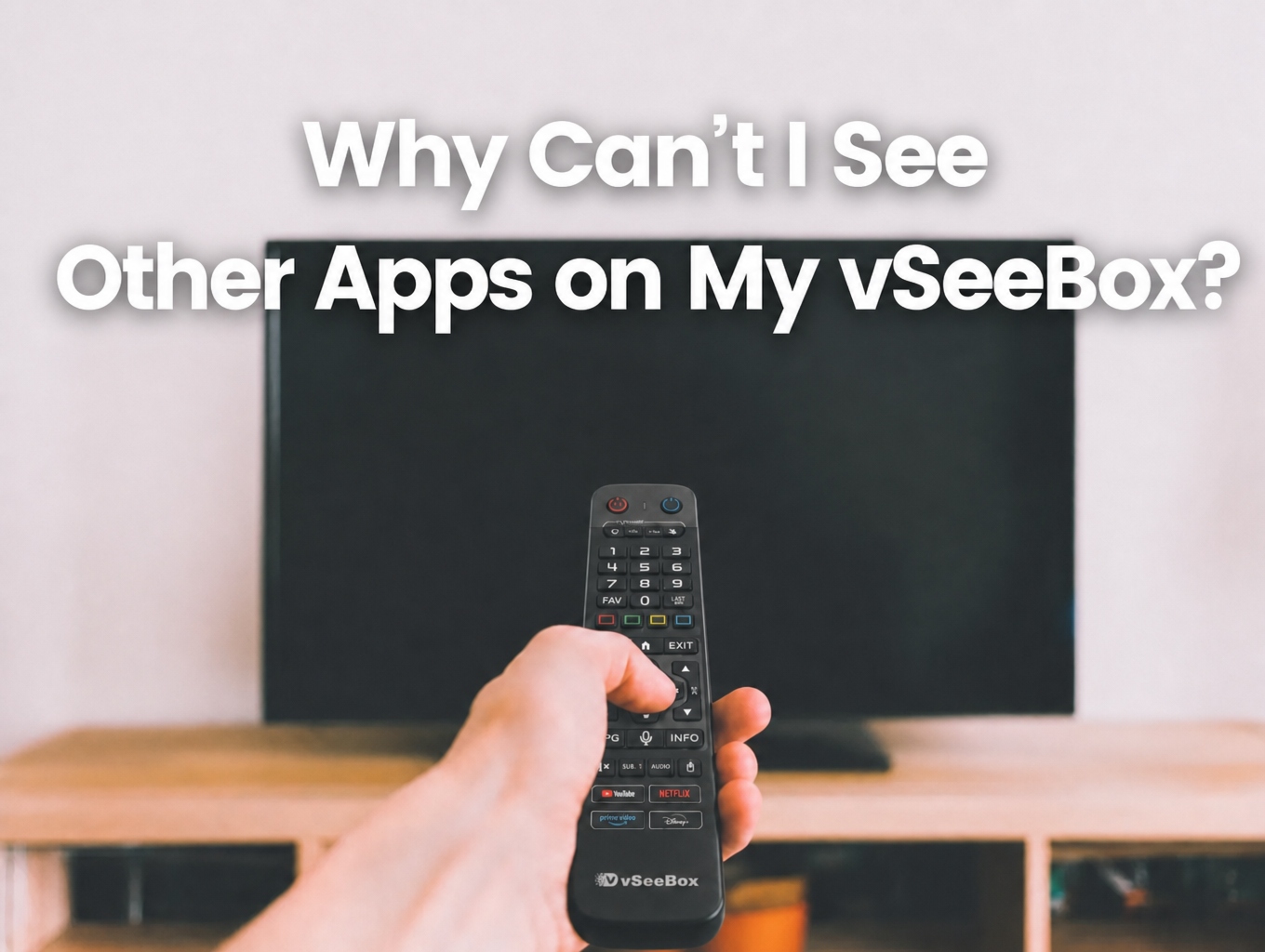
You just set up your vSeeBox, but you don't see the apps you're looking for. Maybe you're looking for Netflix, YouTube, Disney+, or another app. Or perhaps an app is already there, but it isn't loading properly.
Don't worry. Here's how to check, step by step.
First, What is happening?
Can't find the app?
→ Check the Google Play Store or vSee Market.
Found the app, but it isn't installed?
→ Install it and wait for the download to finish.
The app is installed but won't open?
→ Restart the app or your vSeeBox and try again.
The app opens, but content won't load?
→ Check your internet connection and try again later.
This simple check can help you avoid changing settings you don't need to change.
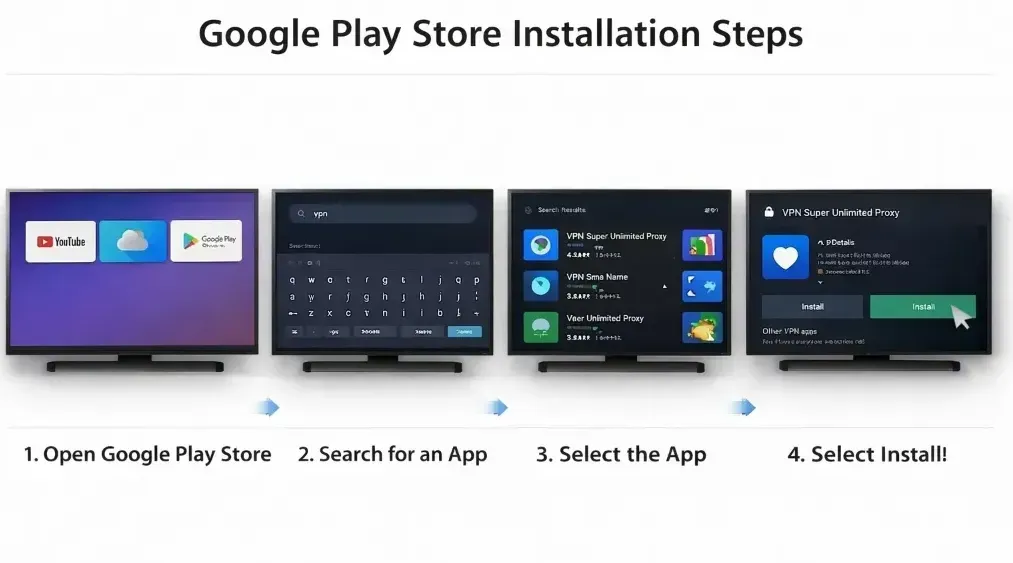
1. Find Apps in Google Play Store
For official apps, the Google Play Store is the first place to check.
Compatible apps may include popular services such as Netflix, YouTube, Disney+, and others. App availability can vary depending on your device and region.
How to Install an App
Step 1: Open Google Play Store
Find and open the Google Play Store on your vSeeBox.
Step 2: Search for the App
Enter the name of the app you want to find.
Step 3: Select the App
Choose the app from the search results.
If the app is available for your device, you can continue with the installation.
Step 4: Select Install
Select Install and wait for the installation to finish.
Once installed, open the app and sign in if an account or subscription is required.
Tip: If you're new to vSeeBox, install one app at a time. This makes it easier to see whether everything is working properly.
.jpeg?w=4096&h=2301)
2. Check vSee Market
Can't find the app you want in the Google Play Store?
You can also check vSee Market from your vSeeBox home screen. vSee Market provides selected third-party apps that can be downloaded and installed directly on the device.
Open vSee Market, browse the available apps, and follow the instructions shown on your screen. This gives you another place to check when an app isn't available through Google Play Store.
Frequently Asked Questions:
Q: Why Does Another vSeeBox Have Different Apps?
A: You may notice that a friend or family member has an app that you don't see on your vSeeBox.
This does not necessarily mean that something is wrong.
App availability can vary depending on:
-
Your vSeeBox model
-
App compatibility
-
Your region
-
Whether the app was pre-installed
-
Whether the app needs to be downloaded separately
Q: The App Is Installed, but It Won't Open
A: If the app is already installed but doesn't open correctly, start with the simplest solution:
- Restart your vSeeBox.
- Unplug the power cable, wait about 10 seconds, then plug it back in.
- After the vSeeBox starts again, open the app and try once more.
Q: The App Opens, but Content Won't Load
A: First, check your internet connection. Your vSeeBox can connect through Wi-Fi or Ethernet, depending on your setup.
If your internet connection is working normally, but the app or service still isn't loading, the problem may be temporary or related to the app or service itself. In that situation, there may be nothing wrong with your vSeeBox.
Try again later before changing advanced settings.
Need More Help?
If you still can't install or use an app, contact vseedirect Support and tell us your vSeeBox model and what you're seeing on the screen.
We're here to help you get the most out of your vSeeBox.
Special Offer
Use code [ vseebox28 ] at checkout to save $35 on your order. [Explore vSeeBox Models →]