

A simple 5-minute check for Wi-Fi and Ethernet
Is your vSeeBox not connecting to the internet, loading slowly, or buffering?
Don't worry. Try these quick checks first. In most cases, you can find the problem without changing any advanced settings.
1. Check Your Internet
First, check whether your home internet is working.
Use your phone, computer, or another device connected to the same Wi-Fi.
Can other devices access the internet?
-
Yes: Your internet is working. Continue to the next step.
-
No: Restart your router or modem and wait a few minutes before trying again.
 2. Check Your vSeeBox Connection
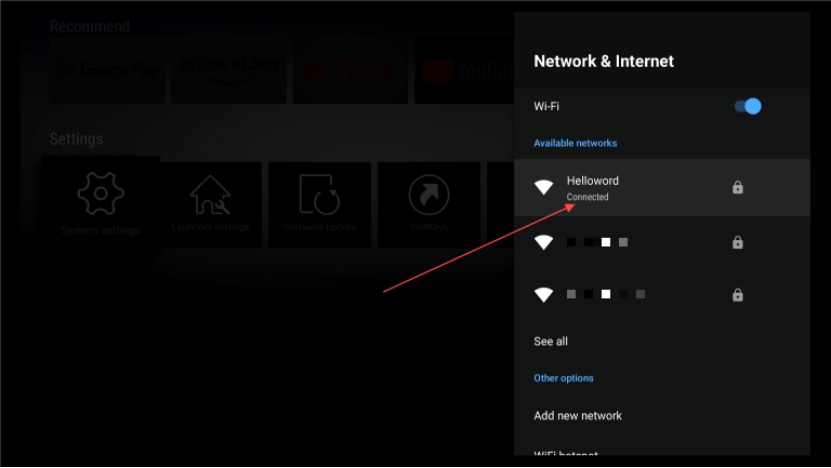
On your vSeeBox, go to:
Settings → Network / Wi-Fi
Make sure your network shows:
Connected
If it says Remembered or won't connect, select your Wi-Fi network and enter the password again.
Tip: Wi-Fi passwords are case-sensitive, so check every letter and number carefully.
3. Check the Wi-Fi Signal
If your vSeeBox is connected but streaming is slow or buffering, the Wi-Fi signal may be weak.
Check the Wi-Fi icon on the screen.
If the signal is weak, try moving your vSeeBox closer to your router.
If your router is nearby, you can also try an Ethernet cable for a more stable connection.
4. Try Another Network
Still not working?
Try connecting your vSeeBox to another Wi-Fi network or a mobile hotspot.
This is one of the quickest ways to find out where the problem is.
- Works on another network?
Your home Wi-Fi, router, or internet service may be the cause.
- Still doesn't work?
The issue may be with the vSeeBox or its network settings.
5. Restart and Try Again
If everything looks correct but the connection still isn't working:
Restart your vSeeBox and router.
Wait for your internet connection to come back, then try opening internet-connected app and see if it works
You can also open the Fast APP on the Home screen to check your internet speed.
 If You're Using Ethernet
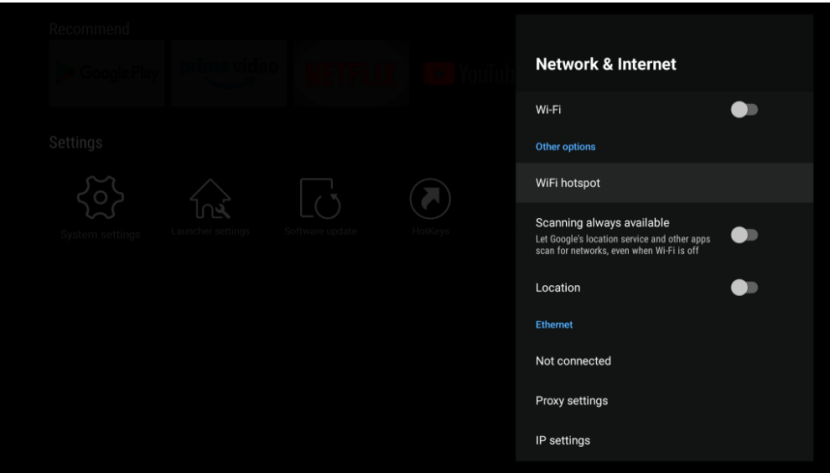
Using an Ethernet cable?
Make sure the cable is firmly connected at both ends:
vSeeBox → Router or Modem
If it still doesn't work, try:
-
Another Ethernet cable
-
Another port on your router
-
Wi-Fi instead of Ethernet
These quick tests can help you identify whether the problem is the cable, router, or network.
Still Can't Connect?
If you've tried the checks above and your vSeeBox still won't connect, contact VSeeDirect Support.
Please include:
-
Your vSeeBox model
-
Wi-Fi or Ethernet
-
What your network status shows
-
What happens when you open an app
This will help us understand the problem and guide you to the right solution.